

Collect the parts you need into shortlists before buying — like favourites, but with the full set of data.
What for
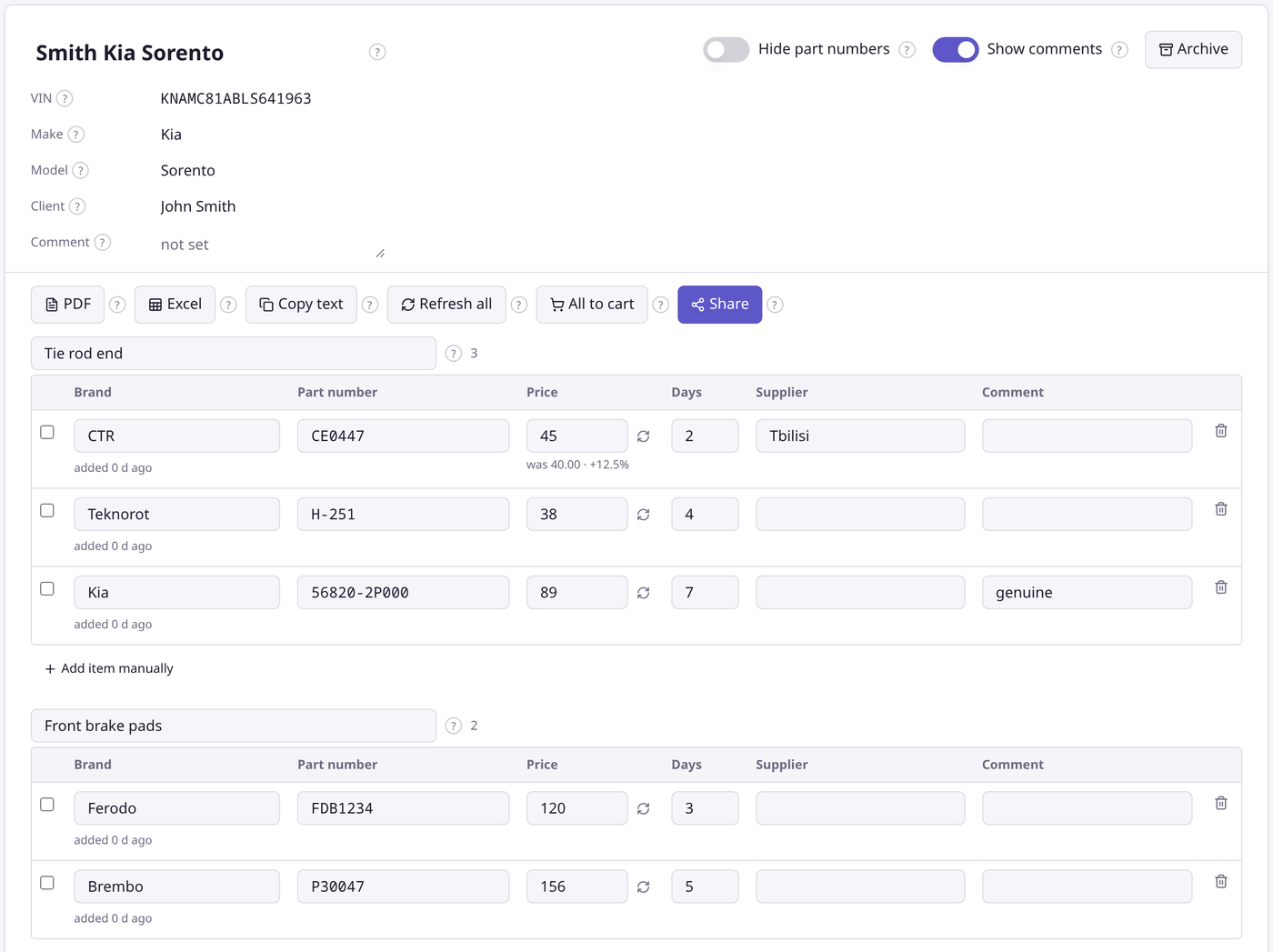
For everyday buyers — gather parts for a scheduled service, park them for later, compare options from different brands, send them to your spouse on WhatsApp for a second opinion, come back to the shortlist next week when payday arrives.
For repair shops — put together a quote with prices and lead times in minutes, send a tidy PDF over WhatsApp, hide your part numbers and working notes. Approved items go to the cart with one button.
What it does
- Add items from search in one click — the bookmark icon next to "Add to cart"
- Group them by part type
- Record the car, VIN, client name and a comment
- Send the shortlist as PDF, Excel or plain text for WhatsApp and Telegram
- Hide part numbers and notes from other eyes
- Refresh prices with a fresh request
- Move approved items to the cart
This is the PDF your client receives
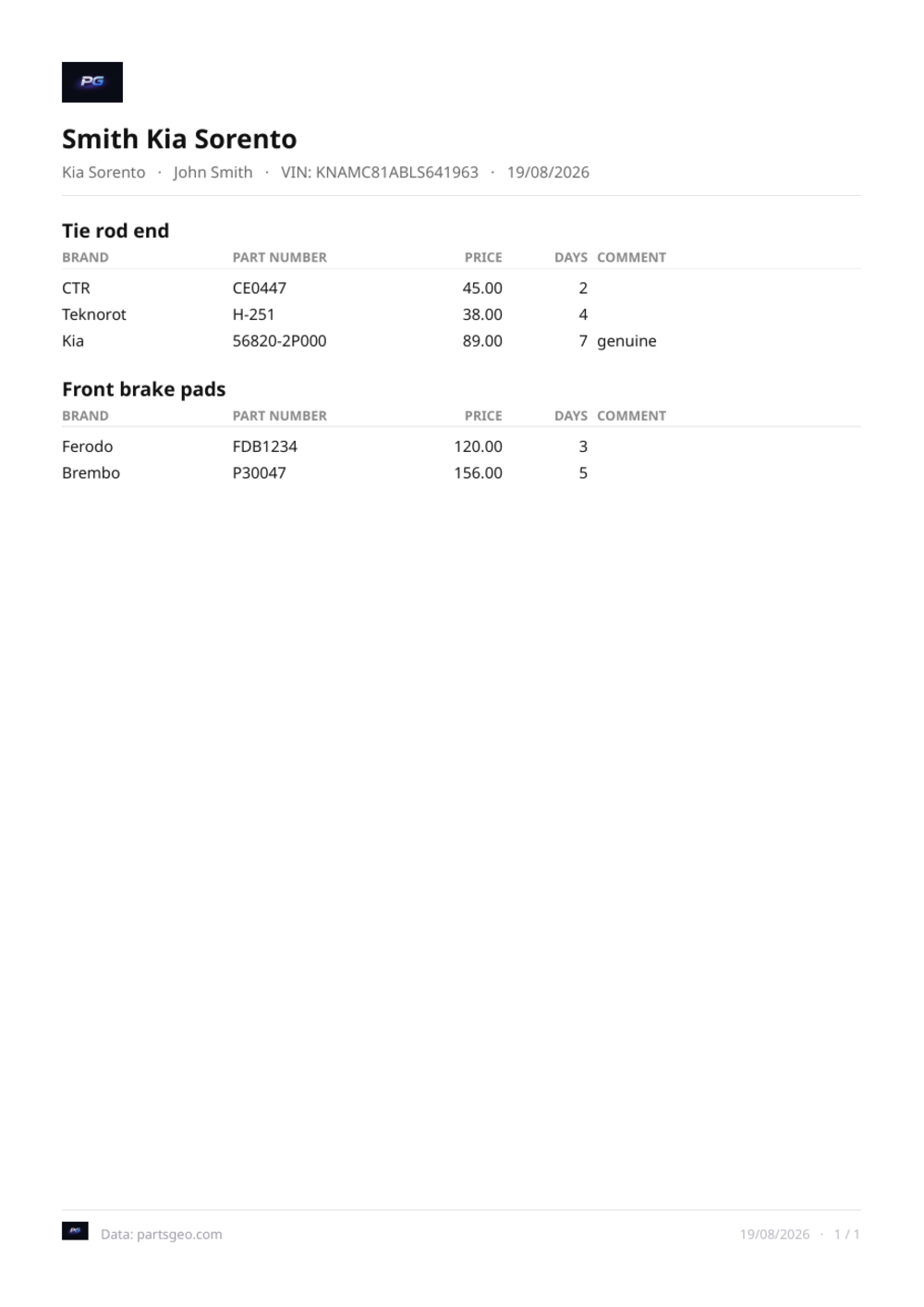
The file comes out in the language you work in: an English interface gives an English PDF.
Where to find it
In your account, left-hand menu — "My lists". The "Guide" item right below it explains the rest.
Up to 10 active shortlists at a time. The archive has no limit.
---
Update, 20 August
Pick the group as you add. Parts used to land in the list as one pile, and you sorted them into groups afterwards. The "Add to list" window now shows a tree: expand a list and its groups appear underneath. Tick the one you need — or create a new group right there, without leaving the search.
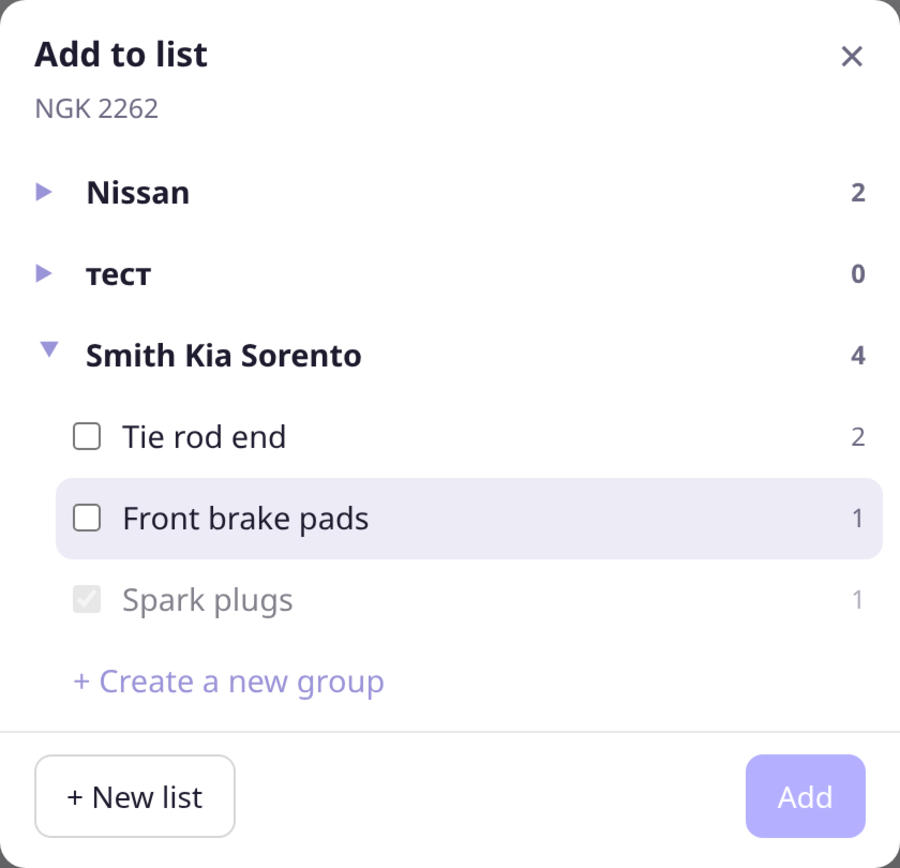
You can tick groups in several lists at once: the same part goes into "Smith Kia Sorento" and "Brown Camry" together. If the part is already in a group, its tick is set and locked — no duplicates.
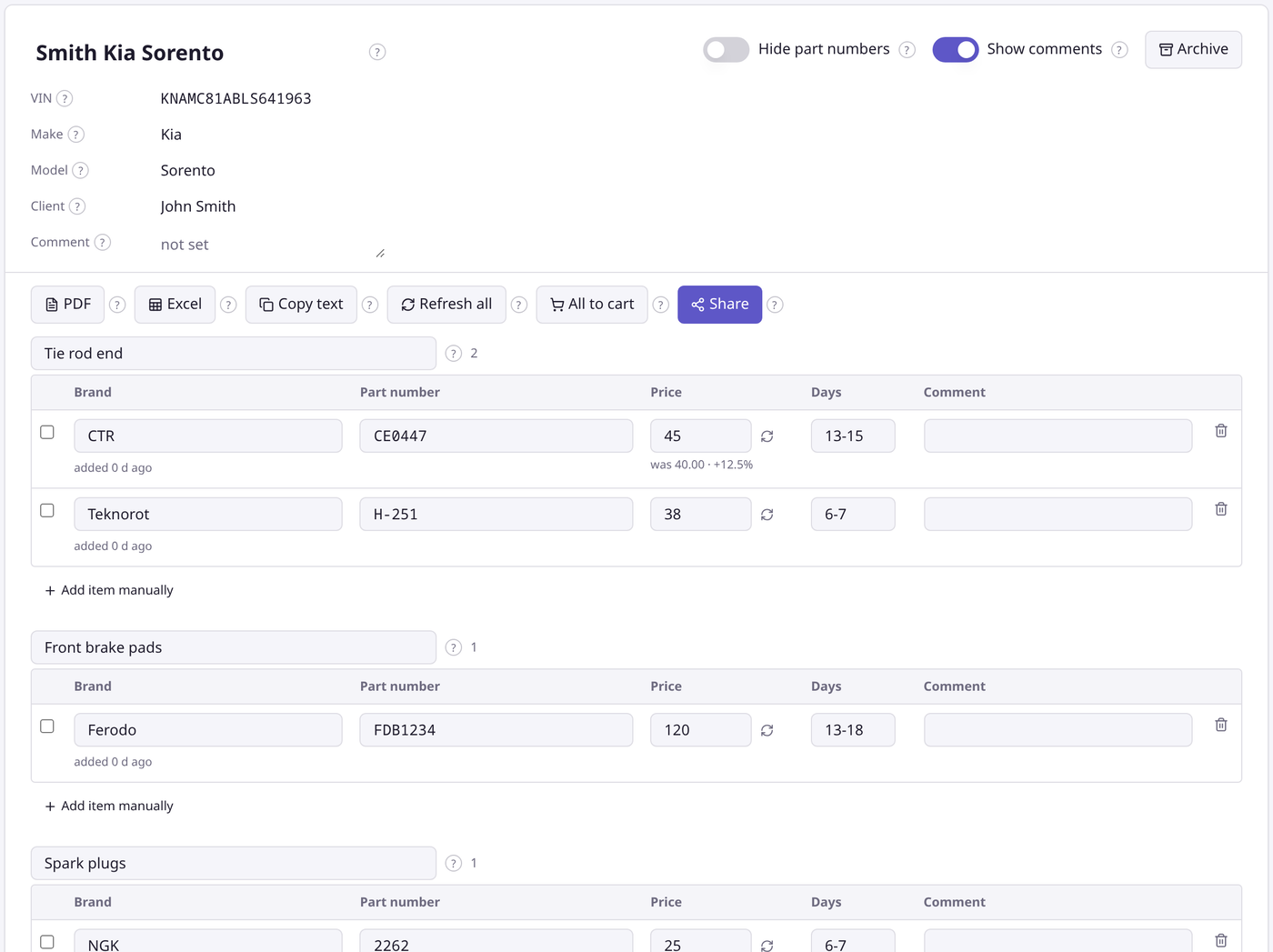
Order now makes sense. New groups go to the bottom of the list, new parts to the bottom of their group. Added earlier — sits higher. Fresh items used to float to the top and shuffle a quote you had just assembled.
Delivery time as a range. List rows now show "13-15 days" instead of just "15", the same as in search and in the cart. For parts added earlier the range appears after the first "Refresh price".
Moving to the cart got more honest. If the price changed you get a yellow note with both prices and an "Accept" button. If the lead time changed or the offer is gone — a red note and a prompt to remove it: the system can no longer slip you a different offer instead of the one you chose.